Best Free AI Lip Sync Tools to Turn Any Photo Into a Talking Video (2026)
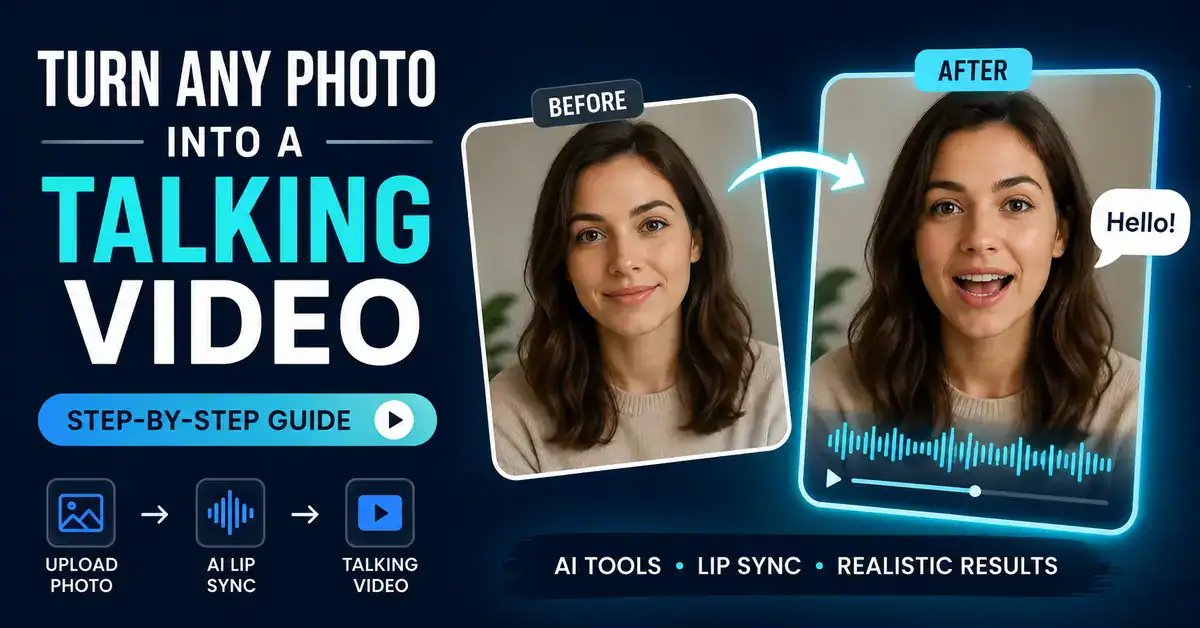
Want to turn a photo into a talking video? Free AI lip sync tools can animate a still image, synchronize its mouth movements with speech, and create a talking video from a single photo without needing a camera or video-editing skills.
The catch is that “free” varies widely between AI tools. Some offer daily or monthly credits, while others limit video length, add watermarks, reduce resolution, or restrict commercial use. A few options can even create watermark-free videos, although they may require technical setup or have other limitations.
In this guide, we compare the best free AI lip sync tools available in 2026, including their free limits, watermarks, video quality, voice options, commercial-use restrictions, and the type of creator each tool is best suited for.
Quick Answer: What Is the Best Free AI Lip Sync Tool?
For most beginners, Vidnoz is one of the more practical free options for experimenting with talking-photo videos because its free plan provides recurring credits. HeyGen is worth trying if realistic avatar quality is your priority, while SadTalker is a stronger option for technically comfortable users who want a self-hosted, watermark-free workflow.
However, there isn’t one best tool for everyone. Your best choice depends on whether you care most about realistic results, free usage, no watermark, ease of use, commercial rights, or offline generation.
What You’ll Find in This Guide
- Best overall free option: Vidnoz
- Best for realistic AI avatars: HeyGen
- Best for creative characters: Hedra
- Best for quick experiments: Magic Hour
- Best self-hosted option: SadTalker
- What is actually free: Free credits, duration, and export restrictions
- What to watch: Watermarks, commercial rights, and changing free-plan limits
- How to create a talking photo: A practical step-by-step workflow
- How to get better results: Photo selection, audio and lip-sync tips
Important: AI tool pricing, credits, limits and licensing terms change frequently. The information below reflects sources checked in August 2026. Always confirm the current plan and usage terms before publishing commercially.
Can You Really Turn a Photo Into a Talking Video With Free AI?
Yes. AI talking-photo tools can animate a single portrait using text-to-speech or an uploaded audio recording. The system analyzes the face and audio, then generates facial and mouth movements that correspond to the speech.
The basic process is:
- Choose a clear portrait.
- Upload the image to an AI talking-photo or lip-sync tool.
- Add a script or audio recording.
- Select a voice if the platform provides text-to-speech.
- Generate the video.
- Review the result and export it if the free plan allows it.
The quality depends heavily on the source photo, audio, model, and platform. A good portrait can produce a surprisingly convincing result, while a side-facing or poorly lit image can create obvious facial distortions.
If you’re also using AI to create written content, our AI Content Style Guide can help you maintain a consistent voice and style across your AI-assisted content.
What Is AI Lip Sync?
AI lip sync is technology that generates or modifies facial movement so that a person’s mouth and expressions correspond to spoken audio.
For a talking-photo workflow, the starting point can be a single still image. The AI uses the facial features in that image and the speech signal to produce a sequence of frames in which the face appears to talk.
Some newer systems also generate head movement, blinking, and facial expressions rather than animating only the mouth.
That distinction matters. Lip sync is the synchronization technology; a talking avatar or talking photo is the resulting video.
How AI Turns a Photo Into a Talking Video
Although different platforms use different models, the workflow is broadly similar.
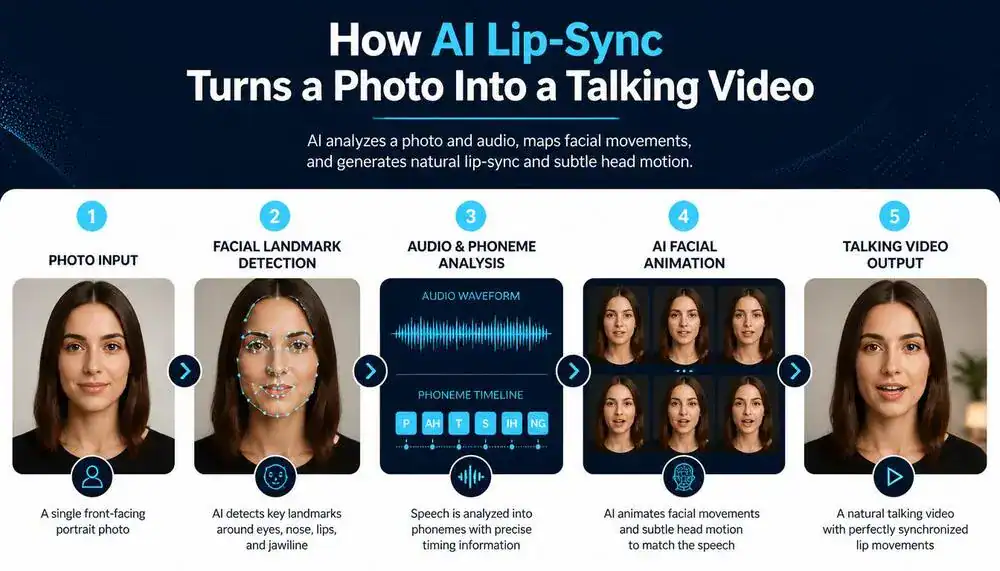
1. The AI analyzes the face
The system identifies important facial features such as the eyes, nose, mouth, and jaw.
A front-facing portrait is generally easier to animate because more of those features are clearly visible.
2. The system analyzes the speech
The input may be:
- typed text converted into speech
- a recorded voice
- an uploaded audio file
- a cloned voice, where supported
The model uses the audio to determine how the mouth should move during speech.
3. Facial movement is generated
The AI creates new video frames in which the lips and other parts of the face move in synchronization with the audio.
More advanced models can also add subtle head movement and expressions.
4. The final video is rendered
The result is usually a short MP4 video that can be downloaded and edited in a normal video editor.
The process sounds simple, but the source image makes a major difference.
Best Free AI Lip Sync Tools
There isn’t one universally best tool because the right choice depends on what you mean by free.
If you want a simple cloud service, your options look different from those of a technical user who wants to run an open-source model locally.
| Tool | Free access | Photo-to-talking video | Main limitation | Best suited to |
|---|---|---|---|---|
| Vidnoz | Yes | Yes | Free-plan restrictions and watermarking may apply | Frequent experiments |
| HeyGen | Yes | Yes | 3 videos/month, up to 1 minute on current Free plan | Testing high-quality avatars |
| Hedra | Yes | Yes | 100 free credits; watermark and non-commercial free output | Characters and talking avatars |
| Magic Hour | Yes | Yes | 576px free output and watermarks | Quick experiments |
| SadTalker | Open-source | Yes | Technical installation/setup | Local, watermark-free generation |
| D-ID | Trial access | Yes | Trial restrictions and watermarking | Evaluating the platform |
Note: Free access should not automatically be interpreted as free commercial use. Licensing differs between platforms and plans.
1. Vidnoz
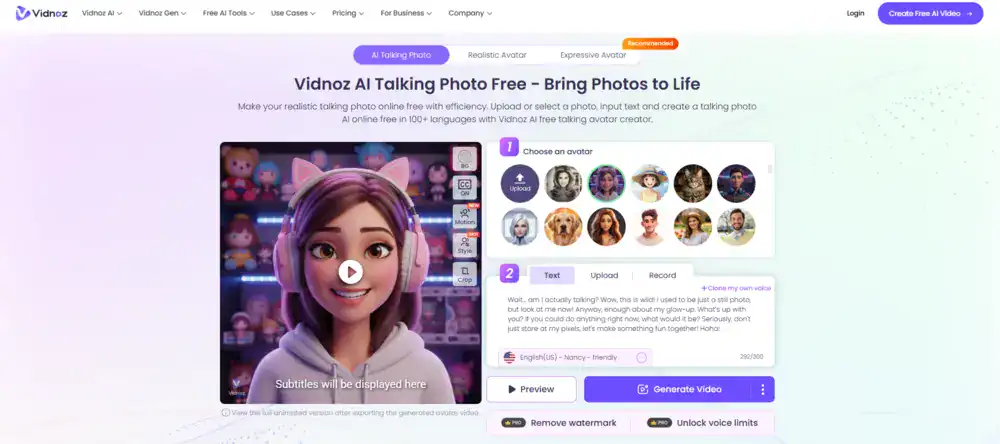
Vidnoz is worth considering if you want a conventional browser-based AI video platform rather than a local model.
Its current pricing page lists a $0 Free plan with daily credits, a maximum video duration of three minutes, 720p export, and photo-avatar functionality. The page also lists photo avatars as a feature that can transform photos into talking avatars.
That makes Vidnoz particularly interesting for people who want to experiment repeatedly rather than use up a small one-time trial.
Why use Vidnoz?
The biggest attraction is the combination of:
- free access
- daily credit allocation
- talking/photo avatars
- 720p export
- a large avatar and voice library
The exact number of credits available to an account can change, so check the pricing page immediately before using the tool.
Best for
Creators who want to experiment with talking-photo videos regularly.
Watch out for
The free plan isn’t equivalent to a paid production plan. Export quality, branding, usage rights, and generation limits should all be checked before you use the output for a client or monetized project.
2. HeyGen
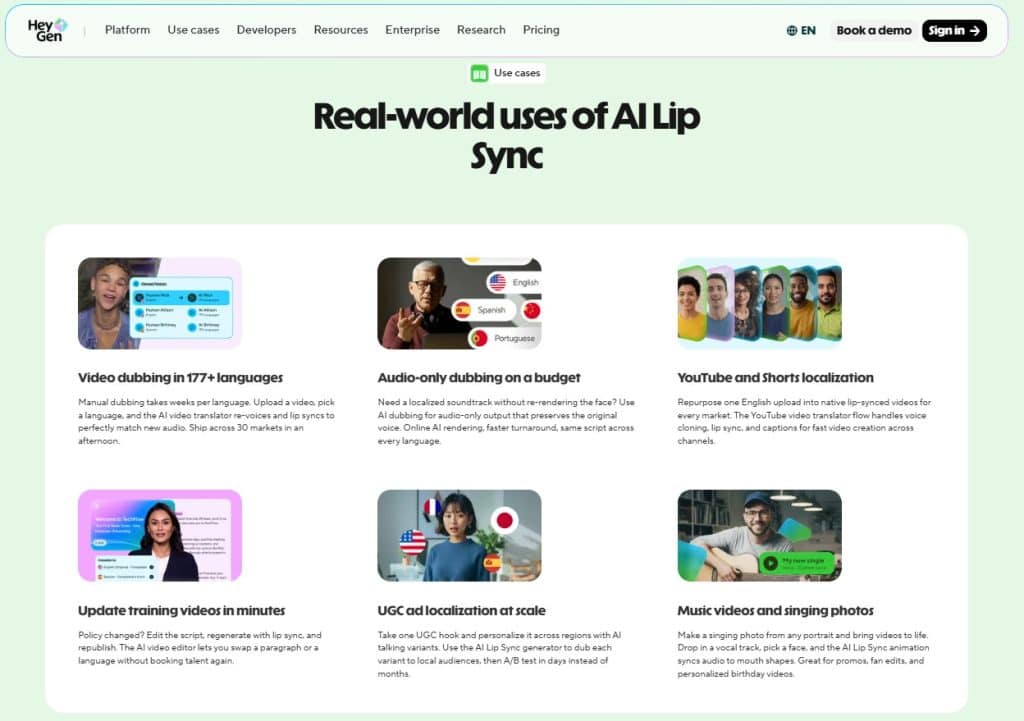
HeyGen is one of the strongest choices if your priority is seeing what a polished commercial AI-avatar platform can produce.
The current Free plan provides three videos per month, with videos up to one minute, and includes access to Avatar IV. HeyGen’s pricing page also lists 30+ languages on the Free plan. The Creator plan is currently listed at $29/month and adds features including watermark removal and longer video generation.
For someone researching AI talking photos rather than producing dozens of videos, three free generations can be enough to evaluate the workflow.
Why use HeyGen?
Its main advantage is the polished avatar workflow. You can use the free plan to understand the quality before deciding whether a paid subscription is justified.
Best for
Testing high-end AI avatar and talking-photo quality.
Free-plan reality
The Free plan is limited to three videos per month and one minute per video. If you need regular publishing without a watermark, you’ll quickly move into paid territory.
3. Hedra
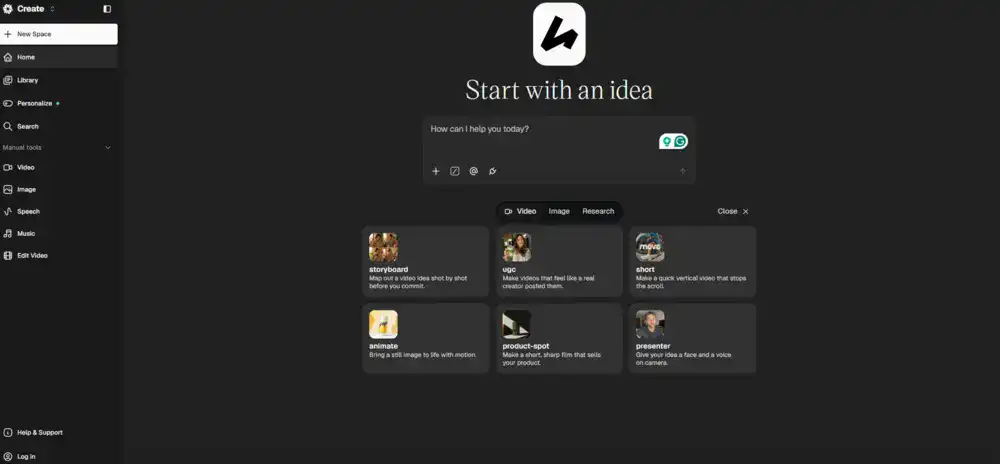
Hedra is particularly interesting if your talking photo isn’t necessarily a conventional corporate headshot.
Hedra’s current AI lip-sync page says users can start with 100 free credits, while its pricing pages state that free outputs include a Hedra watermark and are for non-commercial use. Paid plans begin at $15/month and add commercial-use rights.
Hedra also supports audio-driven character animation. You can upload an image and audio, or use text-to-speech, with the model generating matching mouth movement, head motion, and expression.
Why use Hedra?
It makes sense when you’re working with:
- AI-generated characters
- illustrations
- stylized portraits
- fictional presenters
- social-media characters
Best for
Creators experimenting with characters rather than only realistic human portraits.
Free-plan reality
The free tier is useful for testing, but the watermark and non-commercial restriction mean you should not treat it as a production plan.
4. Magic Hour
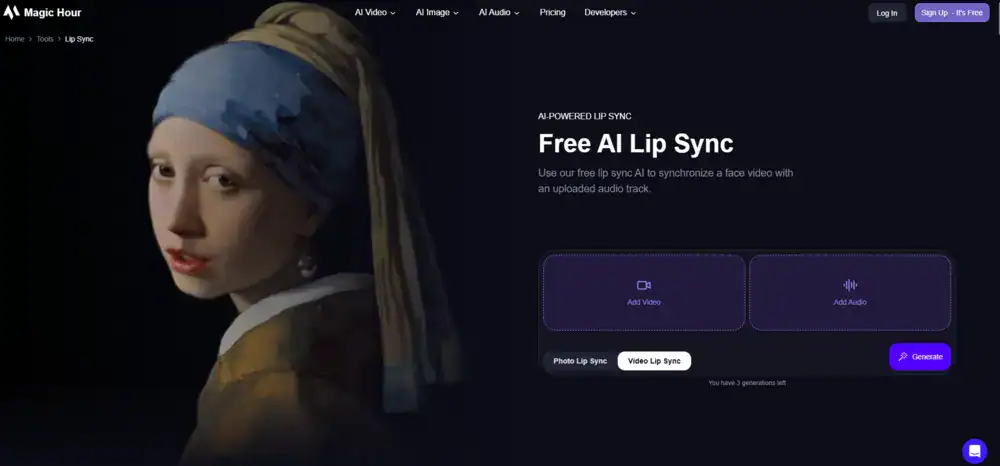
Magic Hour takes a broad creator-tool approach, with image, video, and audio tools available from the same platform.
Its current documentation says free users receive 400 sign-up credits and can claim 100 additional credits per day for up to seven days. The Free plan supports tools including Lip Sync and Talking Photo, with a maximum free resolution of 576px. Free video outputs can contain watermarks, and free users are restricted to personal, non-commercial use.
Magic Hour’s Talking Photo tool supports a still image plus audio, while its documentation recommends a clear, front-facing photograph for better results.
Why use Magic Hour?
It’s useful when you want to experiment with several AI media workflows without opening accounts on multiple specialist platforms.
Best for
Quick experiments and creators who want multiple AI media tools in one place.
One important correction
Don’t assume the old “five seconds free” figure applies to every Magic Hour workflow. Its current documentation distinguishes between the public Talking Photo tool and account-based generation, with available duration depending on the workflow and credits.
5. SadTalker
If you don’t want a subscription-based cloud service, SadTalker is a completely different proposition.
SadTalker on GitHub is an open-source project designed to generate a talking-head video from a single portrait image and an audio track. Its repository currently states that the project uses the Apache 2.0 license and that the previous non-commercial restriction has been removed.
That makes SadTalker particularly relevant to searches such as:
- AI free lip sync offline tools
- free lip sync AI tools offline
- open-source talking photo AI
- local AI lip sync
The catch
SadTalker isn’t comparable to a polished SaaS product.
You need to deal with installation, dependencies, and hardware. A GPU can make local generation considerably more practical.
So while the software itself doesn’t impose a monthly subscription or SaaS watermark, your real cost is technical setup and computing resources.
Best for
Technical users who want local control and don’t mind configuring software.
6. D-ID
D-ID is another established name in talking-avatar generation.
Its core workflow is directly relevant to this article: provide an image and speech input, then generate a talking presenter.
However, D-ID should be treated differently from genuinely free or open-source options. Trial availability, duration, watermarking, and licensing depend on the current offer.
Best for
Creators who want to evaluate a dedicated talking-avatar platform before paying.
Before you use the output
Check the current D-ID plan and licensing information rather than assuming that a trial gives you the same rights as a paid subscription.
Which Free AI Lip Sync Tool Should You Choose?
The answer depends on what you actually need.
Best for regular free experimentation: Vidnoz
Vidnoz is the strongest starting point if your priority is getting repeated access to a browser-based talking-avatar workflow without immediately paying.
Best for testing premium avatar quality: HeyGen
HeyGen’s Free plan gives you three videos a month and access to Avatar IV, making it useful for evaluating the quality of a premium platform before subscribing.
Best for AI characters: Hedra
Hedra is a natural fit for illustrated or stylized characters because its platform is built around audio-driven character animation as well as conventional AI video creation.
Best for experimenting with multiple AI media tools: Magic Hour
Magic Hour is useful when you want talking photos, lip sync, image, and other AI media workflows in one account.
Best for local generation: SadTalker
If you specifically want a local/open-source route rather than a cloud subscription, SadTalker is the obvious option to investigate.
Best for commercial work
There isn’t one universal answer.
Commercial rights depend on the specific platform and plan. For example, Hedra explicitly says commercial use is available on paid plans, while free output is non-commercial. Magic Hour similarly reserves commercial use for paid users.
Don’t choose a tool solely because the generator itself is free.
How to Turn Any Photo Into a Talking Video With Free AI Lip Sync
You don’t need a complicated workflow.
Step 1: Choose a suitable photo
Start with a portrait where the person’s face is easy to see.
A front-facing image is generally the safest choice. Avoid:
- extreme side angles
- faces hidden behind sunglasses
- hands covering the mouth
- masks or scarves
- severe shadows
- very low-resolution images
The clearer the facial features, the more information the model has to work with.
Step 2: Write a short script
Don’t start with a five-minute speech.
For your first test, try 10–20 seconds.
For example:
“Welcome to BestOfGuru. In this video, I’ll show you how AI can turn a normal photo into a talking video.”
A short test makes it easier to identify problems with the voice, pronunciation, and lip movement.
Step 3: Choose the audio
Depending on the tool, you can either type your script and select an AI voice or upload your own recording.
If you’re creating content for YouTube, recording your own voice can make the result feel less generic.
Step 4: Generate the talking photo
Upload the image, add the audio or script, and generate the video.
Don’t judge the platform from one generation alone. If the first result looks strange, try a different photograph before abandoning the tool.
Step 5: Check the mouth and eyes
Look closely at:
- difficult words
- fast speech
- mouth edges
- teeth
- blinking
- eye movement
- head movement
These areas often reveal problems that aren’t obvious when you watch the video quickly.
Step 6: Edit the final video
The generated clip doesn’t have to be your finished video.
You can bring it into an editor such as DaVinci Resolve or another video editor and add:
- captions
- background music
- B-roll
- screenshots
- logos
- transitions
- a call to action
This is often what turns an AI-generated talking photo into useful creator content.
What Kind of Photo Works Best?
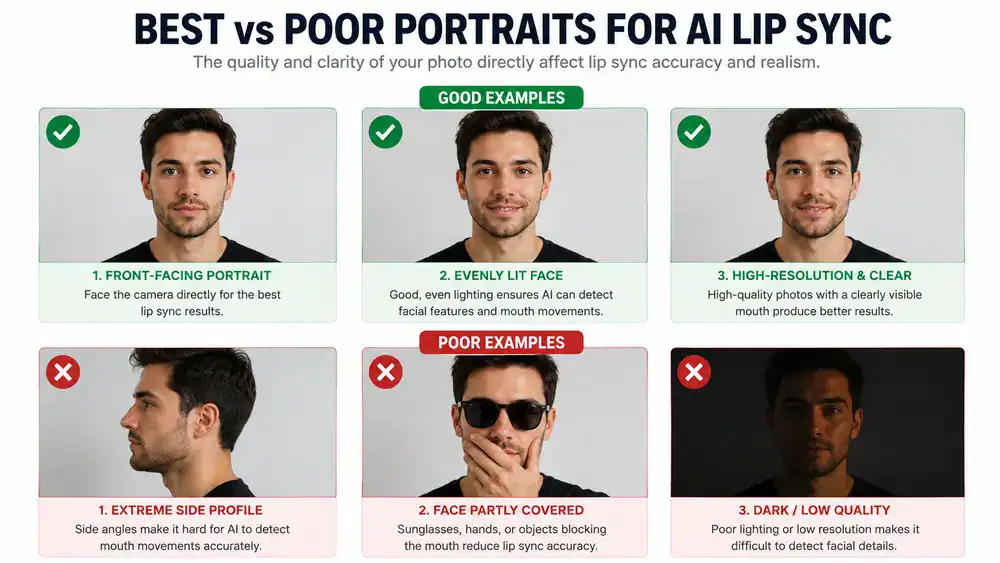
The easiest image for most talking-photo systems is a clear, front-facing portrait.
Think about the image as raw material for the AI.
Good example
A well-lit head-and-shoulders portrait with:
- visible eyes
- visible mouth
- sharp facial details
- minimal motion blur
- relatively neutral expression
Poor example
A photograph where:
- the subject is looking sideways
- the face is partially hidden
- the image is heavily compressed
- the mouth is covered
- strong shadows cross the face
Some platforms can handle more unusual images, including illustrations and characters. Hedra and Magic Hour, for example, explicitly support broader image-based character workflows.
Still, if your goal is realistic lip sync, start with the simplest portrait you can find.
How to Make AI Lip Sync Look More Realistic
A convincing talking photo isn’t only about the AI model.
Your input matters.
Use a sharp source image
Don’t upload a tiny screenshot if you have access to the original photograph.
Keep the face visible
The AI needs to understand the mouth, jaw, and surrounding facial features.
Keep the first script short
A short test lets you find problems before spending more credits.
Avoid unusual pronunciations
Names, abbreviations, technical terms, and foreign words can sometimes cause problems with text-to-speech.
Try your own voice
A real voice recording can make the result feel more personal than a generic AI voice.
Don’t expect perfection
Even good talking-photo systems can produce:
- strange teeth
- exaggerated mouth movement
- unnatural blinking
- facial warping
- expression mismatches
The goal isn’t to make every generated frame perfect. The goal is to create a clip that looks believable enough for its intended use.
Free AI Lip Sync vs Paid AI Lip Sync
The biggest difference isn’t always the AI model.
It’s often the usage restrictions.
| Factor | Free | Paid |
|---|---|---|
| Generation volume | Limited | Higher |
| Watermarks | Common | Often removed |
| Resolution | Often restricted | Higher options |
| Commercial rights | Frequently restricted | More commonly included |
| Video duration | Usually limited | Longer |
| Processing priority | Lower on some services | Higher on some services |
| Voice features | May be restricted | More options |
| Support | Limited | Better support on some plans |
The important point is that free and paid aren’t simply two versions of the same thing.
If you’re only learning how talking-photo AI works, free access may be enough.
If you’re producing YouTube videos, client work, advertisements, or monetized social content, licensing and export restrictions become much more important.
For example, HeyGen’s current Creator plan includes watermark removal and commercial-oriented creator features, while Hedra explicitly reserves commercial use for paid plans.
Can You Use AI Talking-Photo Videos on YouTube?
Yes, but there is an important distinction between being allowed to use an AI tool and how you disclose the resulting content.
YouTube currently requires creators to disclose realistic AI-generated or meaningfully altered content when it could make viewers believe something happened that did not happen. Its examples include making a real person appear to say something they didn’t say.
For example, if you animate a real person’s photograph so they appear to deliver a statement they never made, disclosure may be required.
YouTube’s current guidance also says that disclosure itself does not prevent a video from being eligible for monetization.
What about someone else’s face?
That’s a separate issue.
You should have the appropriate rights or permission to use the source image. YouTube also has a likeness-claim system for certain AI-generated or altered content involving identifiable people.
So the safest workflow is:
Use images you own or are authorized to use + follow the AI tool’s license + disclose realistic synthetic content when the platform requires it.
Common AI Lip Sync Problems
The mouth looks unnatural
Try a better front-facing portrait.
The face becomes distorted
Use a sharper source image and avoid extreme facial angles.
The voice pronounces a name incorrectly
Change the spelling in the script or use an uploaded voice recording if supported.
The expression doesn’t match the speech
A neutral source image is often easier to animate naturally than an image with an exaggerated emotion.
The result has a watermark
That’s normally a plan restriction rather than a technical problem. Check whether the platform’s paid plan removes it.
You run out of credits
Shorten your test clips before generating longer versions. Don’t spend your entire free allocation experimenting with a 60-second script.
The video feels obviously artificial
Don’t rely on the talking head for the entire video.
Add B-roll, screenshots, captions, graphics, and cuts. A talking-photo clip can work much better as one component of a video than as a continuous full-screen shot.
Can AI Lip Sync Work Offline?
Yes, but the offline route is much more technical than using a web-based AI tool.
Most mainstream talking-photo platforms operate in the cloud.
If you want local generation, an open-source project such as SadTalker is a more appropriate direction. Its GitHub repository describes the core workflow as a single portrait image plus audio producing a talking-head video, and the project currently uses an Apache 2.0 license.
The trade-off is convenience.
With a web tool:
Upload → generate → download
With a local model:
Install → configure → download model files → provide image/audio → generate → troubleshoot
For a beginner, the cloud workflow is usually much easier.
For a technically comfortable user who values local control, privacy, or avoiding SaaS credit systems, the open-source route can be worth exploring.
Is a Free AI Talking-Photo Generator Safe?
Treat AI talking-photo services like any other online service that accepts uploaded media.
Before uploading a personal photograph, check:
- the privacy policy
- how long uploaded files are stored
- whether assets are used for model training
- deletion options
- the service’s terms for generated content
And don’t assume that because a tool is free, your uploaded content is automatically private.
For images of other people, obtain appropriate permission before creating a video that makes them appear to speak.
Frequently Asked Questions
What is the best free AI lip sync tool?
For frequent experimentation, Vidnoz is a strong starting point because its current Free plan provides daily credits and supports photo avatars. HeyGen is better suited to evaluating premium avatar quality, while SadTalker is the more interesting option for technical users who want local generation.
Can I turn a photo into a talking video for free?
Yes. Services including Vidnoz, HeyGen, Hedra, and Magic Hour provide free access to talking-avatar or talking-photo workflows, although the amount of generation and usage rights vary by platform.
Can AI make a picture talk?
Yes. A talking-photo AI system can use a still image and speech input to generate a video in which the face appears to speak.
What photo works best for AI lip sync?
Use a sharp, well-lit, front-facing portrait with the mouth and eyes clearly visible. Avoid extreme angles, heavy shadows, and objects covering the face.
Can I create a talking avatar from one photo?
Yes. A single portrait can be enough for many talking-avatar systems. The exact animation quality depends on the platform and source image.
Which AI lip sync tool is best for offline use?
SadTalker is one of the most relevant open-source options for local generation. It requires considerably more technical setup than a browser-based service.
Can I use AI lip-sync videos commercially?
Sometimes. It depends on the platform, plan, and content you use. For example, Hedra says commercial use is available on paid plans, while free output is non-commercial. Magic Hour likewise restricts commercial use to paid users.
Never assume that a free generation is automatically licensed for commercial publishing.
Can I use someone else’s photo?
Only if you have the appropriate rights or permission. Creating a realistic video that makes another identifiable person appear to say something they never said can also raise privacy, likeness, and platform-policy issues. YouTube has a process for likeness claims involving altered or AI-generated content.
Does YouTube allow AI talking videos?
Yes. AI-generated content is not automatically prohibited, but realistic altered or synthetic content may need to be disclosed. YouTube currently requires disclosure when AI meaningfully alters or generates realistic content in ways that could mislead viewers.
How long can a free talking-photo video be?
There is no universal limit. HeyGen’s current Free plan allows videos up to one minute, while other services use credits or tool-specific duration limits. Always check the current plan before starting a project.
Final Verdict
If you’re completely new to AI talking photos, start with a browser-based tool rather than an offline model.
For repeated experimentation, try Vidnoz.
For evaluating polished avatar quality, try HeyGen.
For AI characters and expressive talking avatars, look at Hedra.
For a broad collection of creator tools, Magic Hour is worth testing.
And if your priority is local, open-source generation without a SaaS subscription, investigate SadTalker.
The most important lesson is that “free” doesn’t mean the same thing everywhere. Before you build a YouTube video or client project around an AI talking-photo service, check three things:
How much can I generate? Is the export watermarked? Am I actually allowed to use the result commercially?
Those three answers are often more important than which tool appears at number one on a list.