How to Use ChatGPT in Excel: 15 Practical Examples for Beginners (2026)
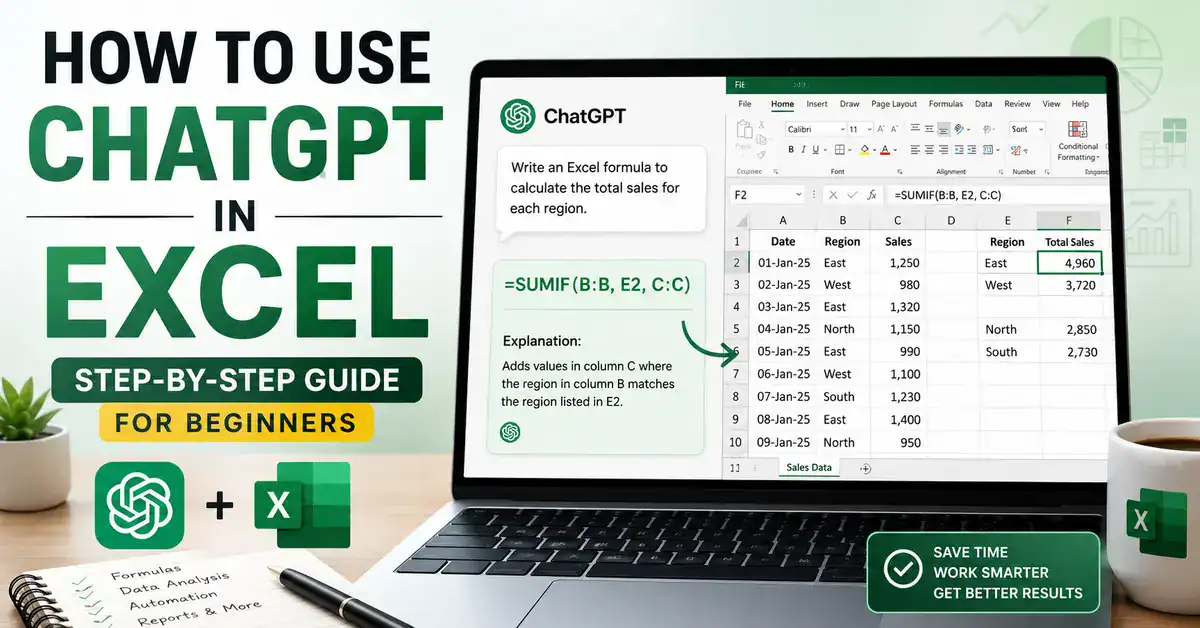
How to Use ChatGPT in Excel is one of the most common questions people ask when they discover how powerful AI can be for spreadsheet work. Whether you’re creating formulas, cleaning data, building reports, or learning Excel functions, ChatGPT can save you hours of trial and error.
In this guide, I’ll show you exactly how to use ChatGPT in Excel, share practical examples, and explain where it works well—and where you still need to double-check the results.
Quick Answer
Yes, you can use ChatGPT with Excel to create formulas, explain spreadsheet functions, analyze data, troubleshoot errors, generate VBA macros, and build reports faster. While ChatGPT does not directly replace Excel, it works as an AI assistant that helps users complete spreadsheet tasks more efficiently.
If you’re completely new to AI tools, start with our guide on How to Use ChatGPT before learning advanced use cases like Excel automation and formula creation.
Common Ways People Use ChatGPT in Excel
- Creating VLOOKUP and XLOOKUP formulas
- Writing IF, SUMIF, and SUMIFS formulas
- Cleaning and formatting data
- Building budgets and trackers
- Creating VBA macros
- Explaining complex spreadsheets
- Analyzing sales and financial data
Can You Use ChatGPT in Excel?
Yes, ChatGPT doesn’t sit inside Excel by default, but you can use it alongside Excel as a formula generator, data analyst, and troubleshooter. You type your problem in plain language, ChatGPT gives you the formula, function, or explanation, and you paste it into your spreadsheet. It’s an assistant, not a replacement.
That distinction trips people up at first. ChatGPT isn’t going to click around your spreadsheet for you (unless you’re using one of the newer plugins or Code Interpreter setups, which I’ll touch on later). What it’s genuinely good at is the thinking part, figuring out which function fits your situation, writing the syntax correctly, and explaining why something isn’t working.
How ChatGPT Works with Excel

There’s no single “ChatGPT button” in Excel that does everything. Instead, think of it as covering six different jobs, and you’ll usually only need one or two of them per task:
- Formula generation — you describe what you want, and it writes the formula
- Formula explanation — you paste in a formula you inherited from someone else, and it tells you what it actually does
- Data analysis — you describe (or paste) your data and ask for patterns, summaries, or insights
- Spreadsheet troubleshooting — you paste an error or describe odd behaviour, and it diagnoses the cause
- VBA assistance — you describe an automation task, and it writes the macro
- Excel learning — you ask, “What’s the difference between X and Y function?” and get a plain-English answer
If I had to draw this as a simple flow, it’d look like this: You describe the problem → ChatGPT generates a solution (formula, explanation, or code) → You paste it into Excel → You test it on real data → You go back to ChatGPT if something’s off. That loop describes, generates, tests, refine is really the whole workflow. There’s no shortcut around the “test it on real data” step, and skipping it is where most people get burned.
How to Use ChatGPT in Excel: Step-by-Step Setup
You don’t need any plugins or paid tools to get started. Here’s the actual sequence I use.
Step 1: Open ChatGPT
Go to chat.openai.com (or use the desktop/mobile app) in a separate window or tab next to Excel. If you’ve never used ChatGPT before, it’s worth reading our guide on how to use ChatGPT first — it covers account setup and the basics of prompting, which makes everything below click faster.
Step 2: Prepare your Excel task
Before you type anything, look at your actual data. What are the column headers? What format are the dates in? Is there a header row? ChatGPT can’t see your spreadsheet unless you tell it or paste a sample, so spend thirty seconds understanding your own data first.
Step 3: Describe the problem clearly
This is the step people rush, and it’s the one that determines whether you get a useful answer on the first try. Don’t just say “make a formula for sales.” Say what columns you have, what result you want, and what edge cases matter (blank cells, duplicates, text vs. numbers).
[Insert Screenshot: ChatGPT generating an Excel formula]
Step 4: Review and test results
Copy the formula into a single cell first, not the whole column, and check the result against something you can verify manually. Once you trust it, drag it down or paste it across the range.
[Insert Screenshot: Applying formula in Excel]
ChatGPT Excel Prompt Template
Use this template whenever you need help with Excel:
“I am using Excel [version].
My data contains:
- Column A: [description]
- Column B: [description]
- Column C: [description]
I want to:
[desired result]
Please provide:
- The formula
- An explanation
- Any limitations or things I should test?”
What Can ChatGPT Help You Do in Excel?
Here’s a breakdown of the tasks I actually use it for, with the kind of prompt that gets a clean result.
| Task | Example Prompt |
| VLOOKUP | “Write a VLOOKUP formula that looks up Employee ID in column A of Sheet1 and returns the matching Salary from column C of Sheet2.” |
| XLOOKUP | “I have product names in A2:A500 and prices in B2:B500 on a ‘Prices’ sheet. Write an XLOOKUP formula for another sheet that returns the price for a product name in cell A2.” |
| IF formulas | “Write a formula that marks a student ‘Pass’ if their score in B2 is 40 or above, otherwise ‘Fail’.” |
| Pivot tables | “I have a sales dataset with Region, Salesperson, and Revenue columns. Walk me through building a pivot table that shows total revenue per region per month.” |
| Data cleaning | “I have a column of names with extra spaces and inconsistent capitalization. Give me a formula to clean them into proper case with no extra spaces.” |
| Conditional formatting | “I want cells in column D to turn red if the value is below 50 and green if above 80. What’s the rule setup?” |
| Charts | “I have monthly expenses in columns A and B. What chart type best shows the trend, and how do I set it up?” |
| VBA macros | “Write a VBA macro that highlights any row where column E says ‘Overdue’.” |
| Budget spreadsheets | “Help me design a monthly budget spreadsheet layout with categories for income, fixed expenses, variable expenses, and savings.” |
| Inventory tracking | “Set up a formula that flags items in my inventory sheet where Quantity in Stock is below the Reorder Level.” |
ChatGPT Excel Formula Examples
| Excel Task | Example Formula |
|---|---|
| Lookup | VLOOKUP |
| Conditional Logic | IF |
| Summing Data | SUMIF |
| Multiple Conditions | SUMIFS |
| Find Data | XLOOKUP |
| Count Records | COUNTIF |
Best ChatGPT Prompts for Excel Users
I keep a running note of prompts that consistently work. Here’s the list, grouped the way I actually use them.
Formulas
- “Write a formula to calculate the percentage change between B2 and C2.”
- “Give me a SUMIFS formula that totals column D where column A equals ‘East’, and column B equals ‘Q1’.”
- “Write a formula to extract just the year from a date in A2.”
- “I need a formula that counts how many cells in B2:B100 contain the word ‘Pending’.”
- “Write a nested IF formula that assigns grades: A for 90+, B for 80-89, C for 70-79, F below that.”
- “Give me a formula to remove duplicate values from a list in column A without using a separate tool.”
Data Analysis
- “Here’s a sample of my sales data [paste 10-15 rows]. What trends or outliers do you notice?”
- “I have customer churn data with columns Tenure, MonthlyCharge, and Churned. What factors should I check first for correlation?”
- “Summarize this data into three key takeaways a manager would care about [paste data].”
- “What’s the best way to spot seasonal patterns in 24 months of revenue data?”
- “Help me figure out which KPI matters most for tracking weekly customer support performance.”
Automation
- “Write a VBA macro that copies rows from Sheet1 to Sheet2 if column C says ‘Approved’.”
- “Give me a macro that automatically saves a backup copy of this file every time it’s closed.”
- “Write a macro that sends an alert (message box) if any cell in column F is blank.”
- “How do I set up a macro to convert all text in column A to uppercase with one click?”
- “Write VBA code to merge data from three sheets into one master sheet, ignoring blank rows.”
Reporting
- “Help me write a short executive summary paragraph based on this data: [paste data].”
- “Turn this raw data table into a clean three-bullet summary suitable for a slide.”
- “What’s the clearest way to present a month-over-month growth table, line chart, or bar chart for this dataset?”
- “Write a short explanation I can include in a report describing why revenue dropped in March, based on this data: [paste data].”
- “Suggest a report structure for a monthly sales performance review using these column headers: [paste headers].”
Real Examples of Using ChatGPT in Excel
Theory’s fine, but seeing it actually applied is what made this click for me. Here are four examples I’ve used almost word-for-word.
Example 1: Creating a VLOOKUP Formula
I had an employee list on one sheet and salary data on another, and needed to merge them. My prompt: “I have Employee ID in column A on ‘Staff’ sheet and matching Employee ID with Salary in columns A and B on ‘Payroll’ sheet. Write a VLOOKUP formula for the Staff sheet that pulls in the salary.”
ChatGPT gave me: =VLOOKUP(A2,Payroll!A:B,2,FALSE)
It also explained why I needed FALSE at the end (exact match, not approximate), which is exactly the kind of detail that trips up beginners and causes wrong results without throwing an error.
Example 2: Cleaning Duplicate Data
A client sent me a contact list with duplicate entries from three different exports. I asked: “I have a list of email addresses in column A with duplicates. Give me a way to identify and remove them, and explain the difference between Excel’s built-in ‘Remove Duplicates’ and a formula-based approach.”
It walked me through Data > Remove Duplicates for a quick fix, then gave me a COUNTIF formula (=COUNTIF($A$2:A2,A2)>1) to flag duplicates first when I wanted to review them before deleting anything, which, for client data, I always do.
Example 3: Building a Monthly Budget Sheet
I asked ChatGPT to help a friend who’d never built a budget spreadsheet: “Design a simple monthly budget layout for someone with one income source and five expense categories: rent, groceries, transport, savings, and entertainment.”
It suggested a layout with Income at the top, expense categories below with planned vs. actual columns, and a running “remaining balance” formula (=Income-SUM(Expenses)). Simple, but it saved the back-and-forth of figuring out structure from scratch.
Example 4: Generating a VBA Macro
For a recurring task highlighting overdue invoices, I asked: “Write a VBA macro that checks column E for dates older than today and highlights the entire row yellow.”
It gave me a working macro using Date comparison and .EntireRow.Interior.Color. I did have to tweak the date format slightly because my column was stored as text, not a true date, which is a good example of why testing matters (more on that below).
My Experience Using ChatGPT with Excel
Honestly, the time I save isn’t from any single big win; it’s from cutting out a hundred small five-minute searches. I used to Google “Excel formula to count if not blank” type queries constantly, click through three ad-heavy blog posts, and adapt someone else’s example to my columns. Now I just describe my exact columns and get something tailored immediately. On a normal week, I’d guess this saves me a solid hour or two, mostly in formula-writing and VBA, where syntax is easy to get slightly wrong.
What’s worked well: anything with a clear, describable goal, formulas, macros, explaining someone else’s confusing spreadsheet, and structuring a new sheet from scratch. It’s also genuinely great as a teacher. I’ve learned more about INDEX/MATCH and array formulas from asking ChatGPT “why does this work” than from any tutorial I’d watched before.
The mistakes I’ve made were almost always about being vague. Early on, I’d ask things like “fix my formula” without pasting the formula or explaining my data, and I got generic answers that didn’t apply. I also once trusted a formula without testing it on a single row first, applied it across 2,000 rows, and had to manually undo a mess because it handled blank cells differently than I expected. Lesson learned: always test on one row first.
Where it struggles: really large, messy spreadsheets where it can’t see the full structure, and anything involving Excel’s more obscure formatting quirks, merged cells, weird regional date formats, or legacy file issues. It also can’t fix anything it can’t see, so for genuinely broken files, you’re still better off troubleshooting visually yourself first, then describing the specific issue.
Benefits of Using ChatGPT in Excel
- Saves time writing and debugging formulas
- Explains confusing formulas you’ve inherited from someone else
- Works as an on-demand Excel tutor with no judgment for “basic” questions
- Helps beginners avoid intimidating, jargon-heavy documentation
- Generates VBA macros without needing to learn VBA syntax from scratch
- Useful for structuring new spreadsheets (budgets, trackers, reports) from a blank page
- Available 24/7, no waiting for a colleague or forum reply
- Free to start, with no Excel add-in installation required
Limitations You Should Know
- Formula mistakes happen. It can write syntactically correct formulas that still don’t match your intent if your prompt was vague. Always check.
- It needs verification, not blind trust. Test on a small sample before applying across your whole dataset.
- Complex, multi-sheet spreadsheets confuse it. If your file has dozens of interlinked sheets, you’ll get better results by isolating the specific problem rather than describing the whole file.
- Data privacy matters. Don’t paste sensitive company data, personal identifiers, or confidential financial figures into ChatGPT unless you’re using an enterprise version with the right data handling agreements in place. When in doubt, anonymize column names and use sample values.
Common Excel Problems ChatGPT Can Solve
| Problem | How ChatGPT Helps |
| #N/A or #REF! errors | Paste the formula and error, and it diagnoses the likely cause (mismatched ranges, wrong lookup value, deleted reference) |
| The formula is too slow on large sheets | Suggests more efficient alternatives (e.g., XLOOKUP or INDEX/MATCH instead of nested VLOOKUPs) |
| Don’t know which function to use | Describe your goal in plain English and get a function recommendation with reasoning |
| Inherited a confusing spreadsheet | Paste the formula and ask for a plain-English breakdown of what it does |
| Repetitive manual tasks | Describe the task and get a VBA macro to automate it |
| Inconsistent data formatting | Get cleaning formulas or step-by-step instructions for Find & Replace, Text to Columns, or Power Query |
ChatGPT vs Excel Copilot
| Feature | ChatGPT | Excel Copilot |
| Works inside Excel directly | No (separate window, copy-paste) | Yes (built into the ribbon) |
| Can see your live spreadsheet | No, unless you paste data | Yes, reads your actual sheet |
| Writing formulas from a description | Strong | Strong |
| Explaining existing formulas | Strong | Moderate |
| Generating VBA macros | Strong | Limited |
| Data analysis on pasted samples | Strong | Strong, plus native chart generation |
| Cost | Free tier available; paid tiers for more capability | Requires Microsoft 365 Copilot subscription |
| Best for | Formula writing, learning, troubleshooting, macros | Quick in-sheet analysis without switching windows |
If you already pay for Microsoft 365 Copilot, it’s genuinely convenient not having to alt-tab. But for formula logic, VBA, and actually understanding why something works, I still find ChatGPT’s explanations more thorough. They’re not really competitors. I use both depending on the task.
Tips for Getting Better Excel Answers from ChatGPT
- Include sample data. Even five rows of realistic (anonymized) data help ChatGPT match the actual structure of your sheet instead of guessing.
- Mention your Excel version. Some functions like XLOOKUP don’t exist in older Excel versions, and ChatGPT needs to know that to avoid giving you something incompatible.
- Explain the desired outcome, not just the mechanism. Instead of “write a formula with IF,” say what result you actually want; ChatGPT will pick the right function.
- Ask follow-up questions. If something doesn’t work, paste the exact error or unexpected result back in. It’s much better at debugging when it can see what actually happened.
- Specify whether you want a formula or VBA. The same task can often be solved either way, and they behave differently (formulas update live, macros run on demand).
Frequently Asked Questions
Can ChatGPT create Excel formulas?
Yes. Describe what you want the formula to do, including your column layout, and ChatGPT will write the formula for you, along with an explanation of how it works.
Can ChatGPT analyze spreadsheets?
Yes, if you paste in sample data or a description of your dataset. It can spot trends, summarize numbers, and suggest what to look into further, though it can’t open or read an Excel file on its own unless you’re using a version with file upload support.
Can ChatGPT automate Excel tasks?
Yes, mainly by writing VBA macros that you then run inside Excel. It can also recommend Excel’s built-in automation features, like Power Query, where appropriate.
Can ChatGPT write VBA code?
Yes, mainly by writing VBA macros that you then run inside Excel. It can also recommend Excel’s built-in automation features, like Power Query, where appropriate.
Is ChatGPT better than Excel Copilot?
Neither is strictly “better”; they’re suited to different things. ChatGPT tends to be stronger for formula logic, VBA, and learning; Excel Copilot is more convenient since it works directly inside your live spreadsheet without switching windows.
Can beginners use ChatGPT with Excel?
Yes, and honestly, it’s one of the easiest ways to start learning Excel. You don’t need to know the correct terminology; describing your problem in plain language is enough to get a usable formula or explanation.
Final Thoughts
ChatGPT isn’t going to replace your understanding of Excel, and it shouldn’t; you still need to know enough to check its work. But as a way to skip the slow parts (hunting for syntax, decoding old formulas, writing repetitive macros), it’s genuinely changed how I work with spreadsheets day to day.
If you’ve never tried it, don’t start with your most complicated spreadsheet. Pick one small, annoying task you deal with regularly, a formula you always have to look up, or a cleanup job you do manually every month, and describe it to ChatGPT today. That’s the fastest way to see if this workflow fits the way you work.
If you’re still getting comfortable with ChatGPT itself, it’s worth checking out our guides on how to use ChatGPT Voice Mode for hands-free prompting while you work, and how to use ChatGPT in Telugu if you’d rather describe your Excel problems in your own language.